
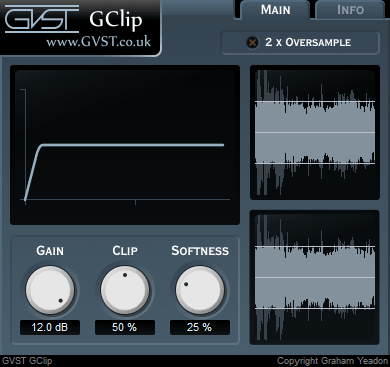
GClip in simple English is a free wave-shaping clipper vst plugin, built to stop your signal from crossing a defined threshold. It lets you control peaks in a musical way, whether you want transparent loudness control or more aggressive harmonic shaping.’ You can achieve all that with G Clip.
The plugin is built around a simple and intuitive layout.
The graph display shows the exact clipping curve, making it easy to understand how the signal is being shaped. On the right, the waveform display gives a clear before-and-after view, comparing the input signal with the clipped signal or output in real time. This makes gain staging and peak control much easier to do and witness.
The main controls on this plugin are Gain, Clip, and Softness. Gain pushes the signal into the clipper. Clip sets the maximum ceiling level. Softness adjusts how hard or smooth the knee feels, allowing anything from strict hard clipping to softer, more musical saturation-style clipping.
A standout feature is 2x oversampling, which helps reduce aliasing and keeps the sound cleaner, especially when using aggressive settings on bright or transient-heavy material.
For producers, GClip works exceptionally well for controlling peaks, increasing perceived loudness, and shaping harmonics. It is often used on drums, bass, mix buses, and masters where extra level is needed without losing punch. But, witnessing it in the DAW yourself is the fastest way to develop your own taste and sound.
Its biggest strengths are transparent clipping, adjustable knee softness, real-time visual monitoring, and reliable performance across demanding projects. It adapts well to your workflows. I mostly use it for creative clipping and distortion. But you can use it howsoever you want.
For best results, pair it with a limiter for final peak protection, experiment with the softness control for more musical clipping, and enable oversampling when working with high-frequency material. You will feel the magic right away.
GClip supports Windows and macOS and is available in VST, AU, and AAX formats.
How to Install GClip?
To install GClicp on FL Studio, Ableton and more. Or your favorite DAW. Follow the pointers mentioned below –
First, go to the official GClip download page: Download GClip
Download the ZIP file and extract it. Inside, you’ll find the plugin file (usually a .dll on Windows or .vst on macOS).
Next, copy this file into your DAW’s plugin folder. On Windows, this is typically your VSTPlugins folder. On macOS, place it inside the Audio Plug-Ins folder under VST or Components.
Open your DAW and rescan plugins. Most DAWs require either a manual rescan or a restart before new plugins appear.
Once scanned, search for “GClip” in your plugin list and load it on a track.
Free Download: GClip (Click on this link, select your platform/OS, and enjoy)


I didn’t like it Initially but now it’s my go to. Thanks boys